
Option 1: OAuth Auto-Connect (Recommended)Under Review / Unavailable
OAuth Feature Under Maintenance
The GroMach app is currently undergoing Shopify's official review process, so the OAuth auto-connect feature is temporarily unavailable. Please use Option 2: Manual API Connection below to complete the integration. We will restore this convenient feature as soon as the review is approved.
Option 2: Manual API Connection (Currently Recommended)
During the OAuth review period, please connect by creating a Shopify Custom App. This is the official, standard, and secure connection method supported by Shopify.
Step 1: Create a Custom App
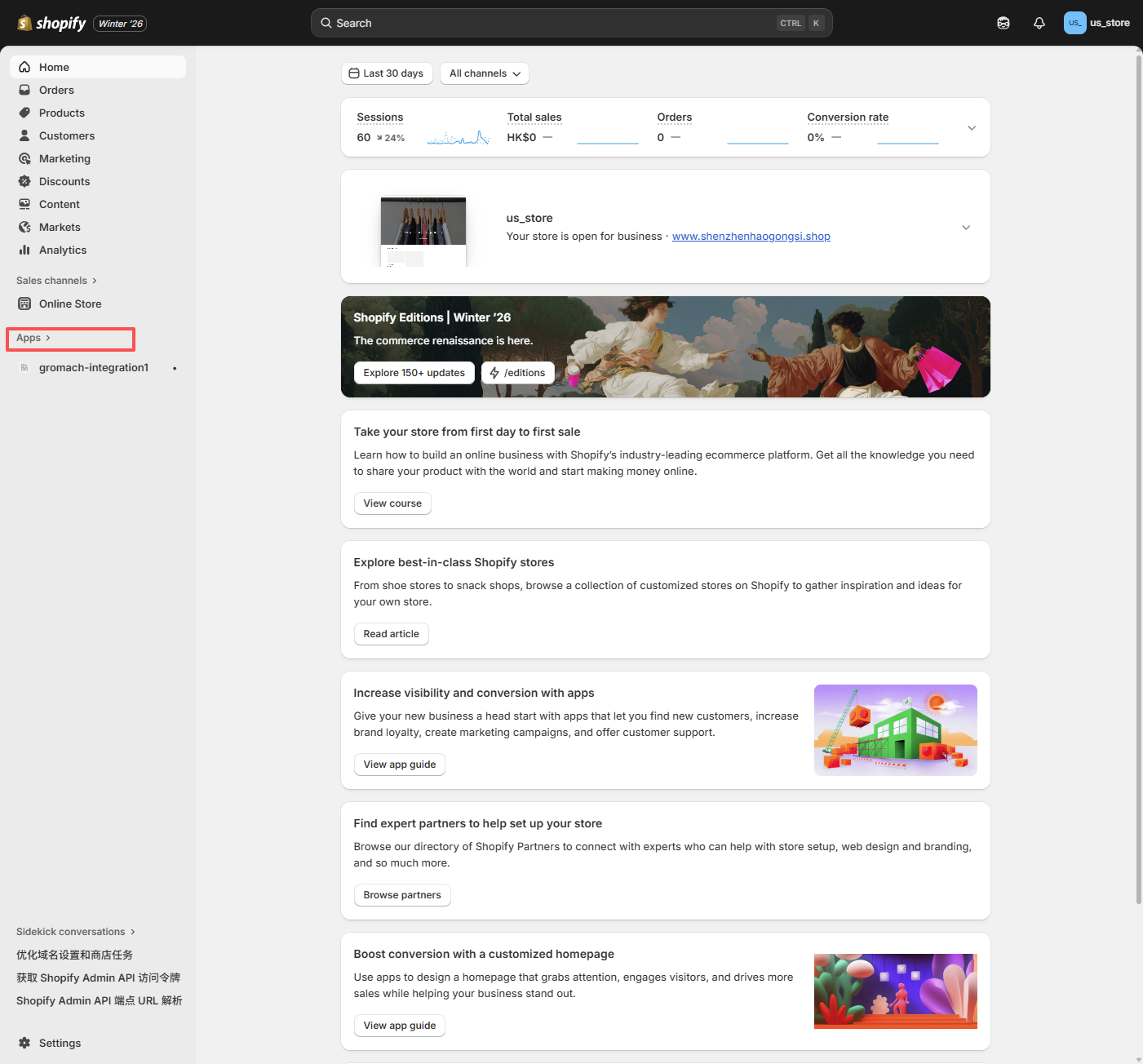
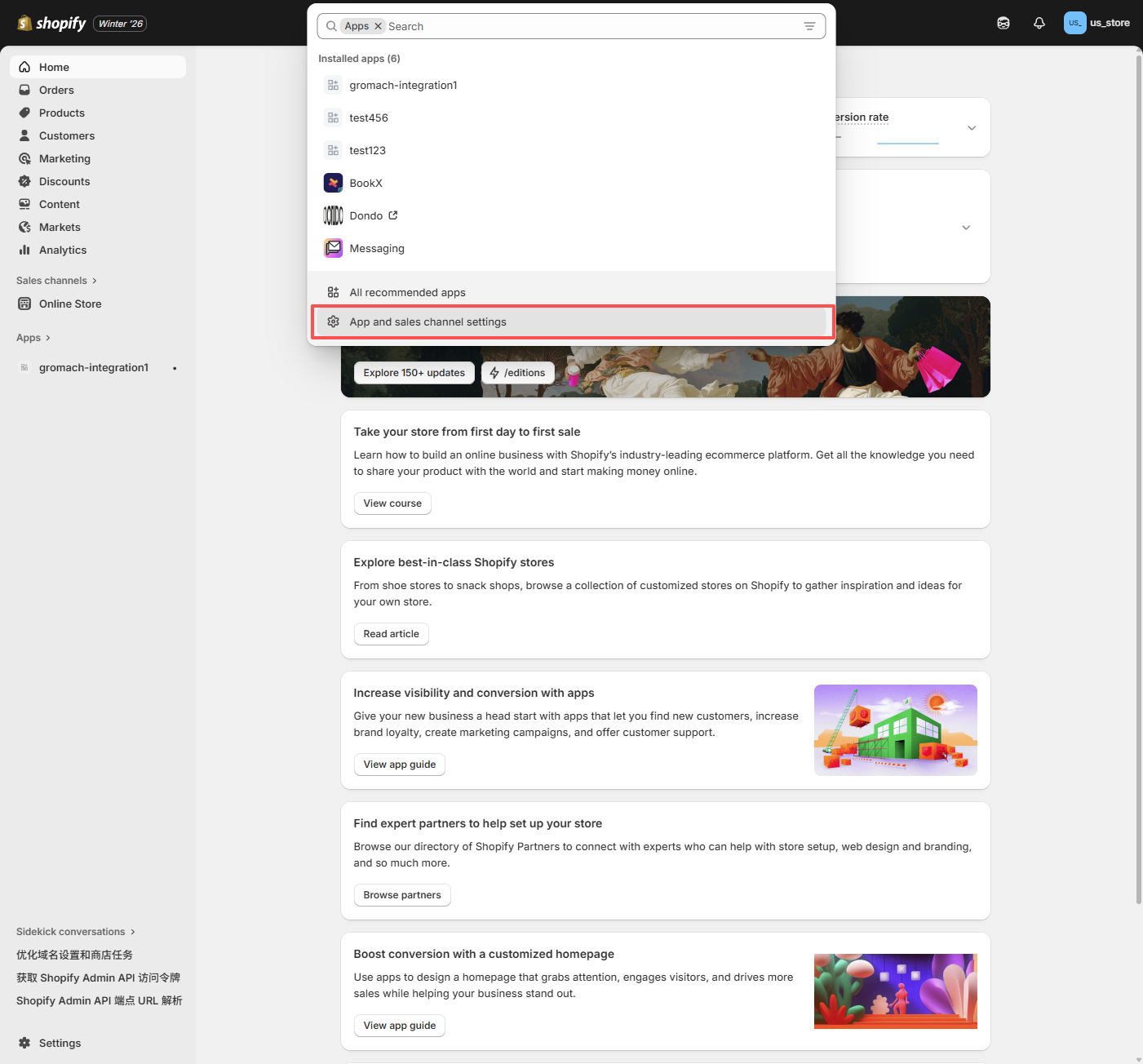
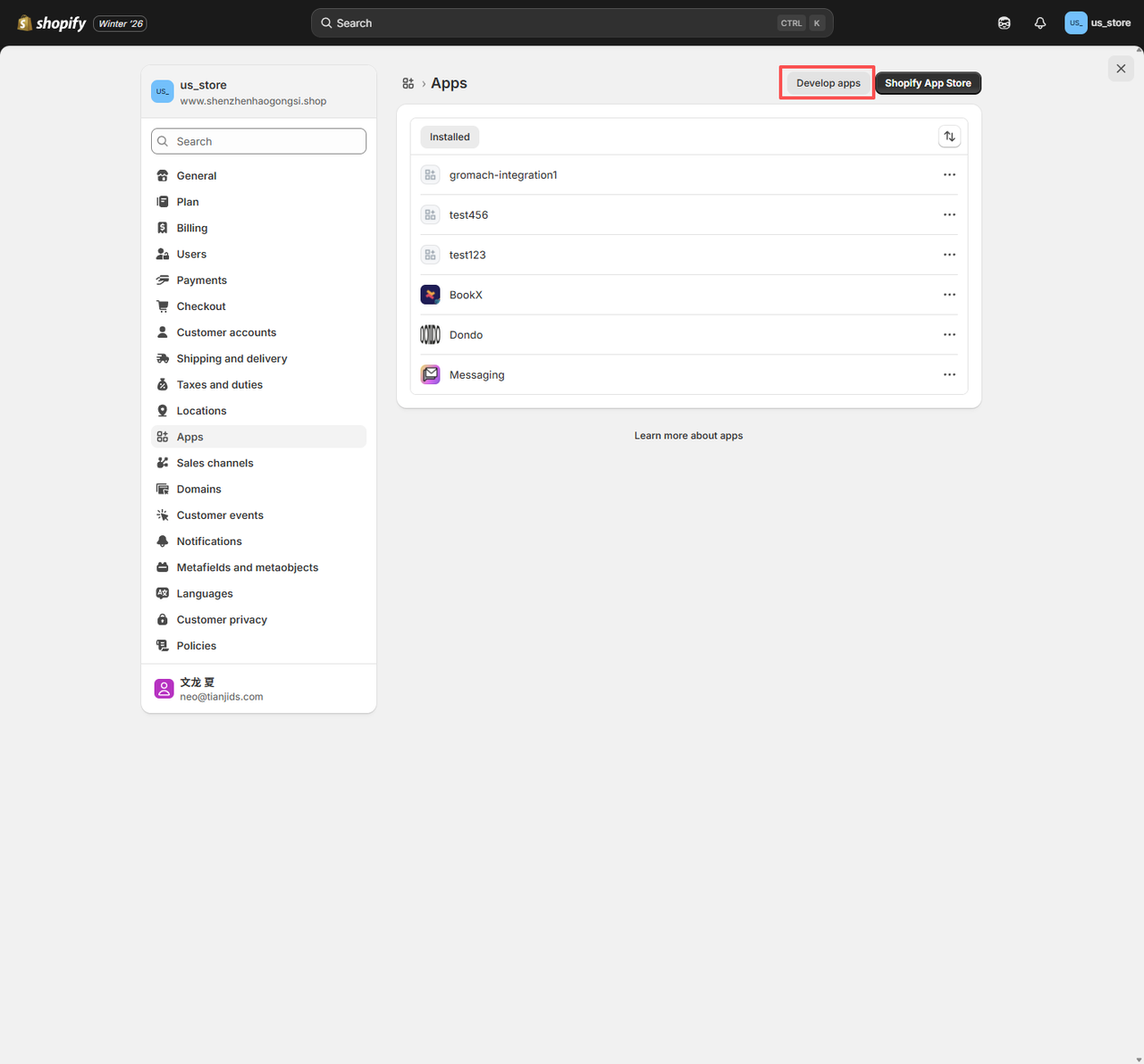
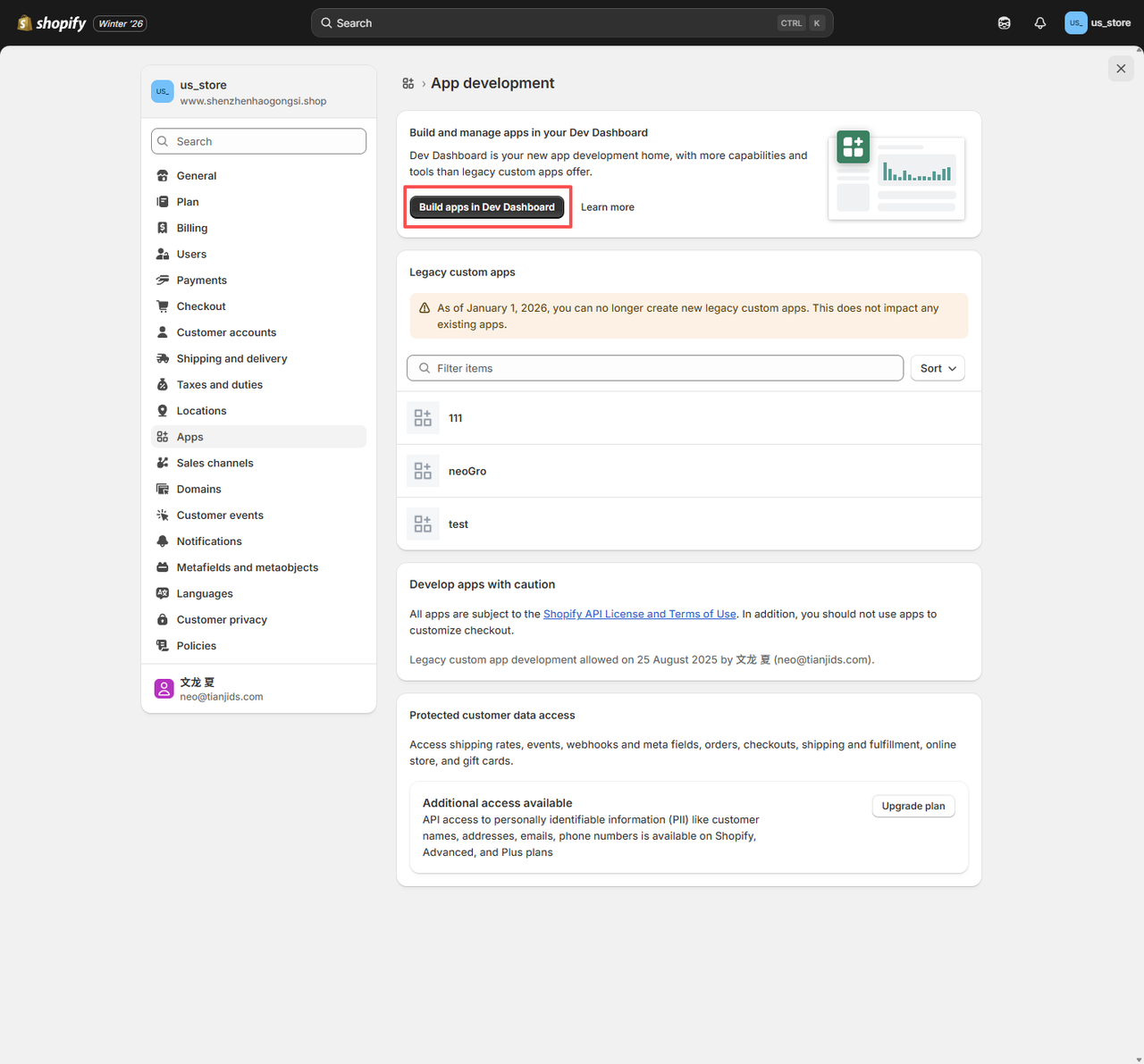
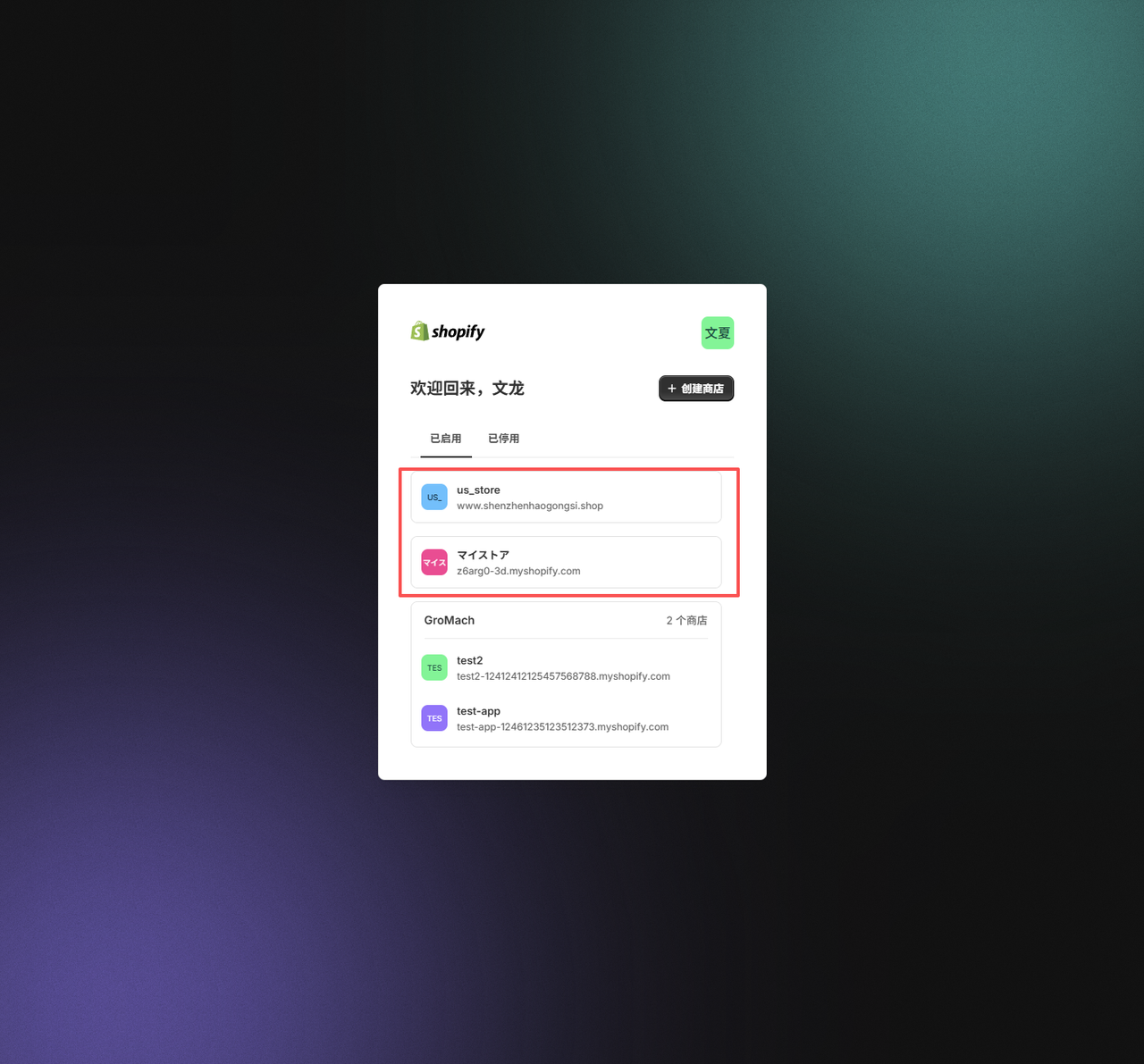
Log in to your Shopify admin dashboard and navigate to Apps > App and sales channel settings > Develop apps > Create an app.
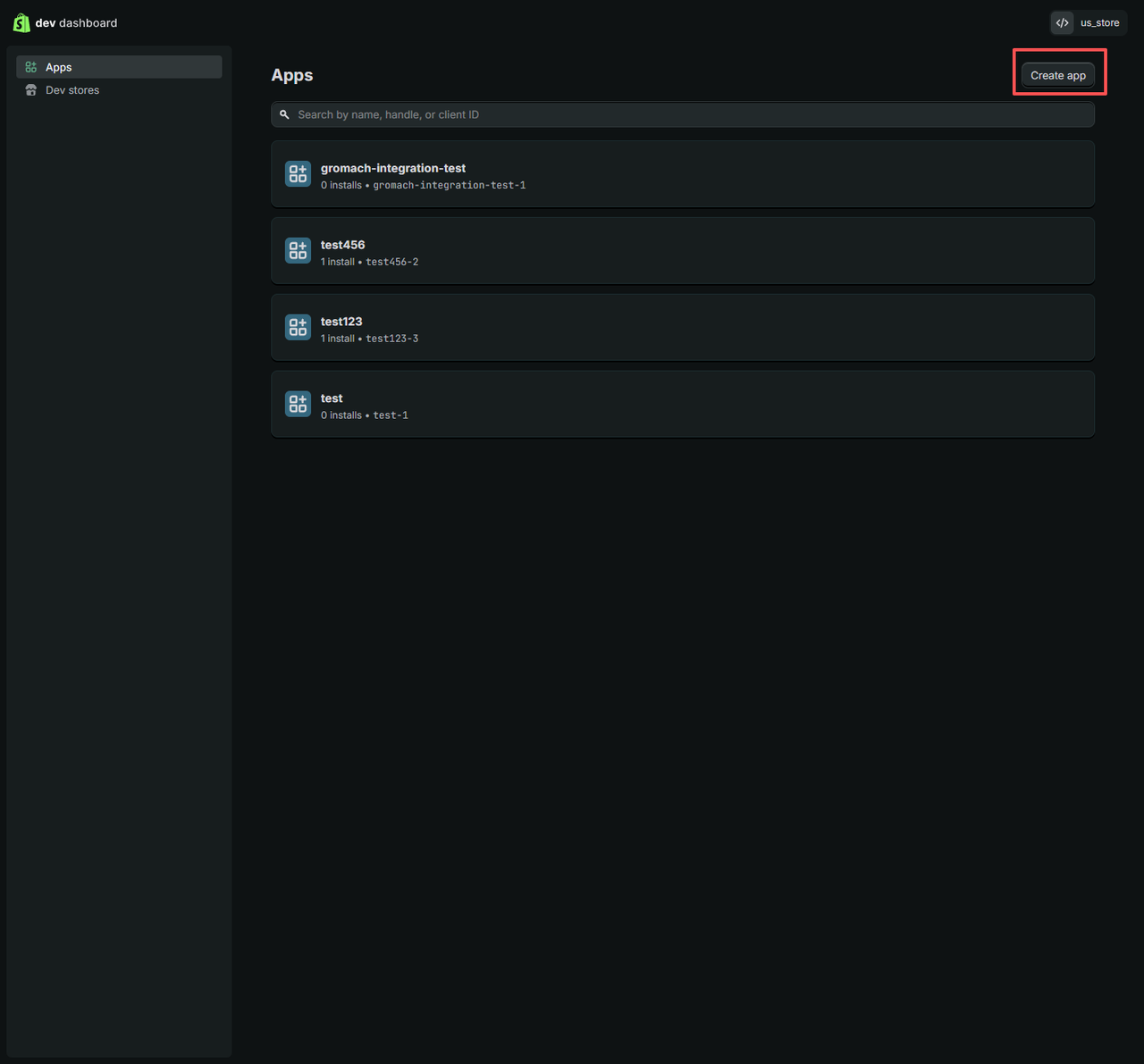
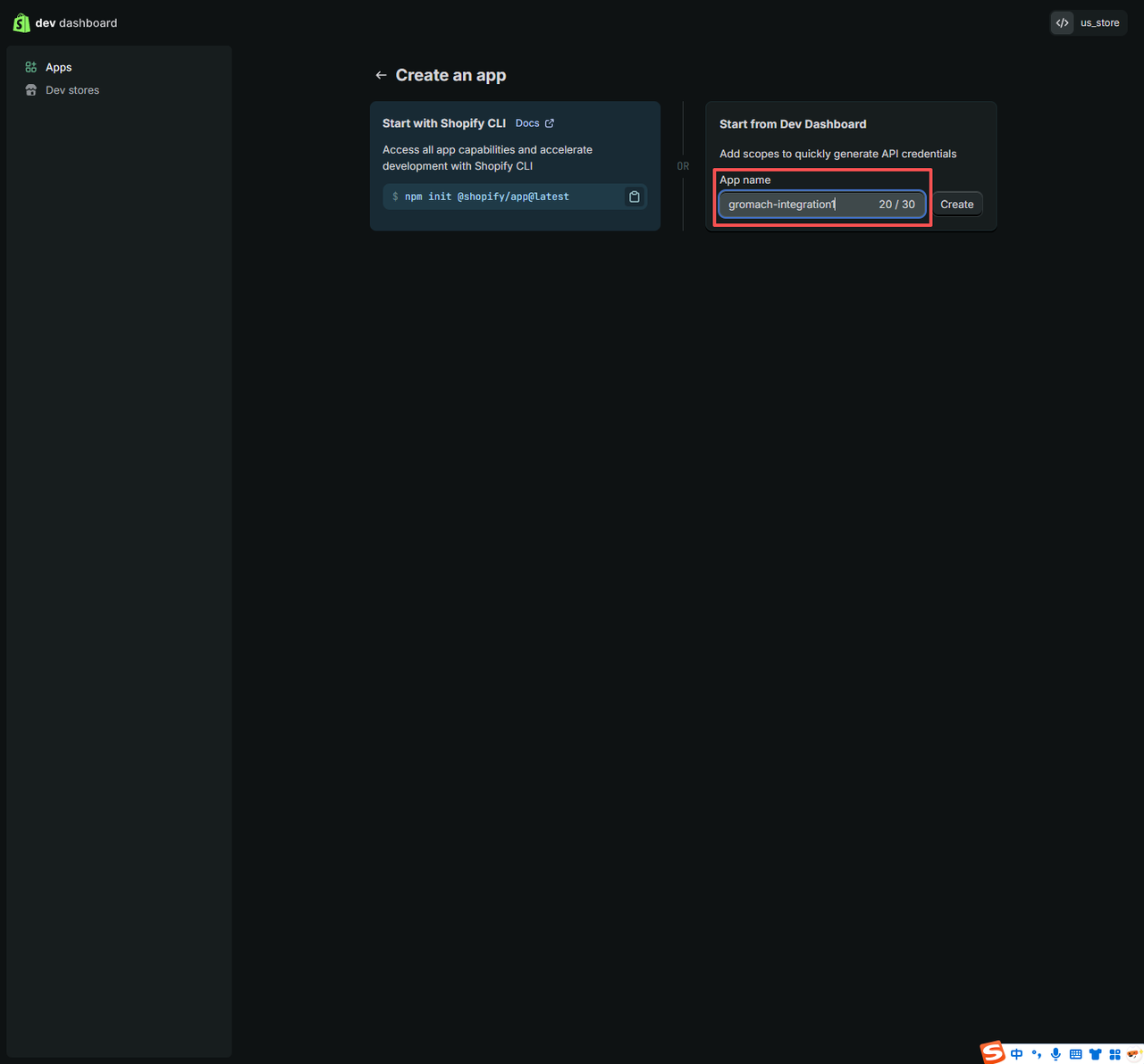
Step 2: Configure API Scopes
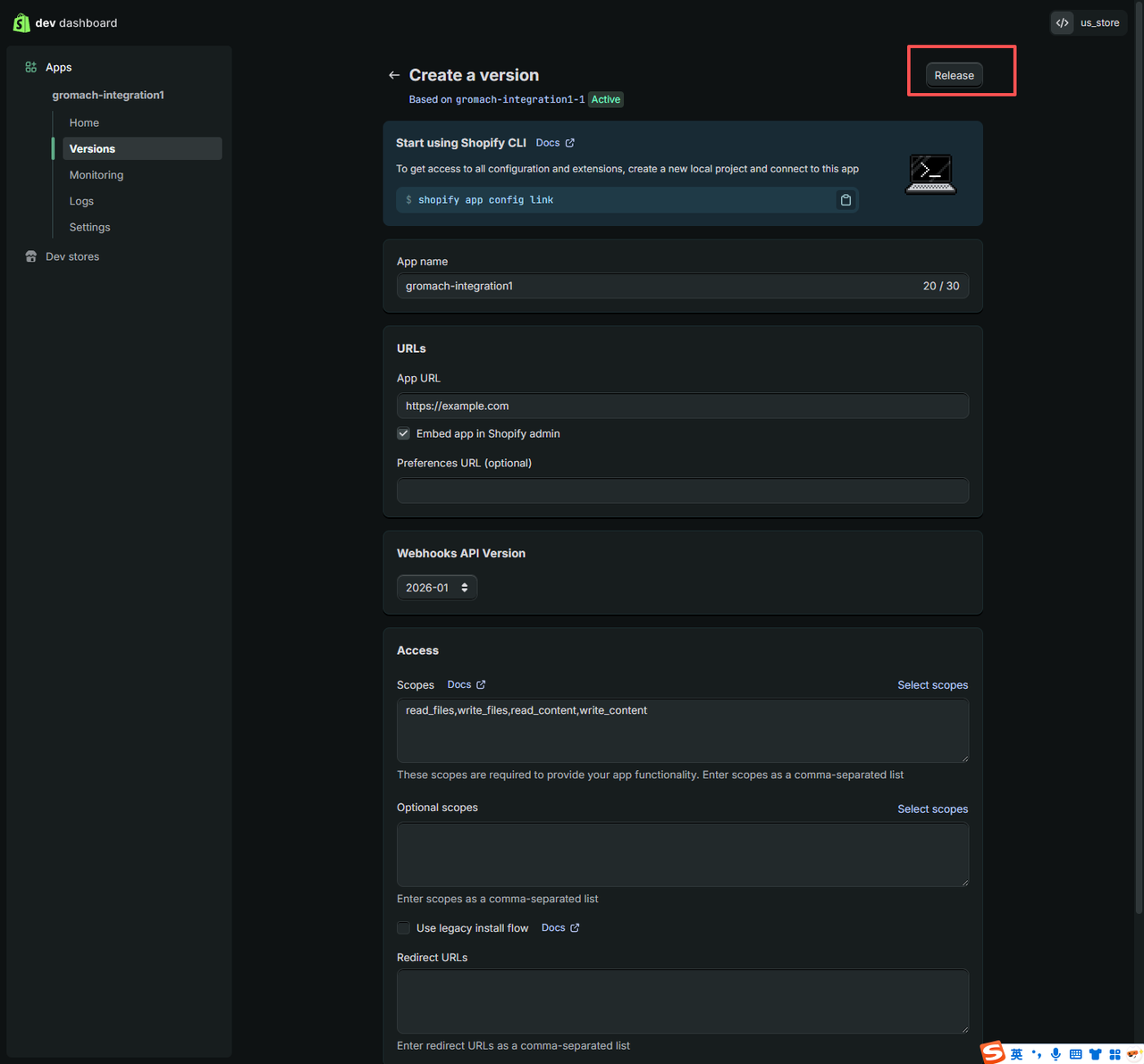
Click "Configure Admin API scopes" and select the following 4 required permissions:
read_contentwrite_contentread_fileswrite_files
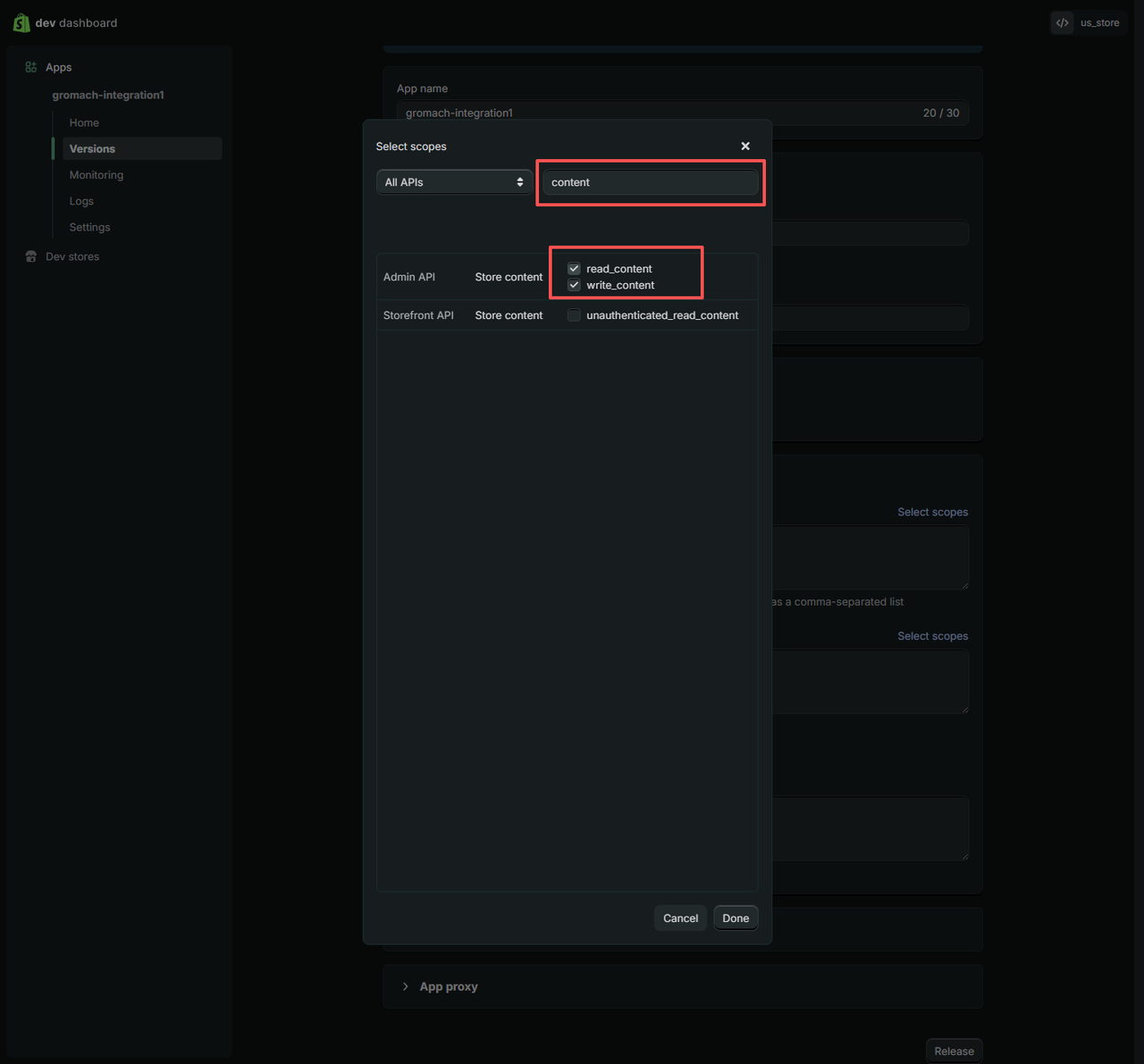
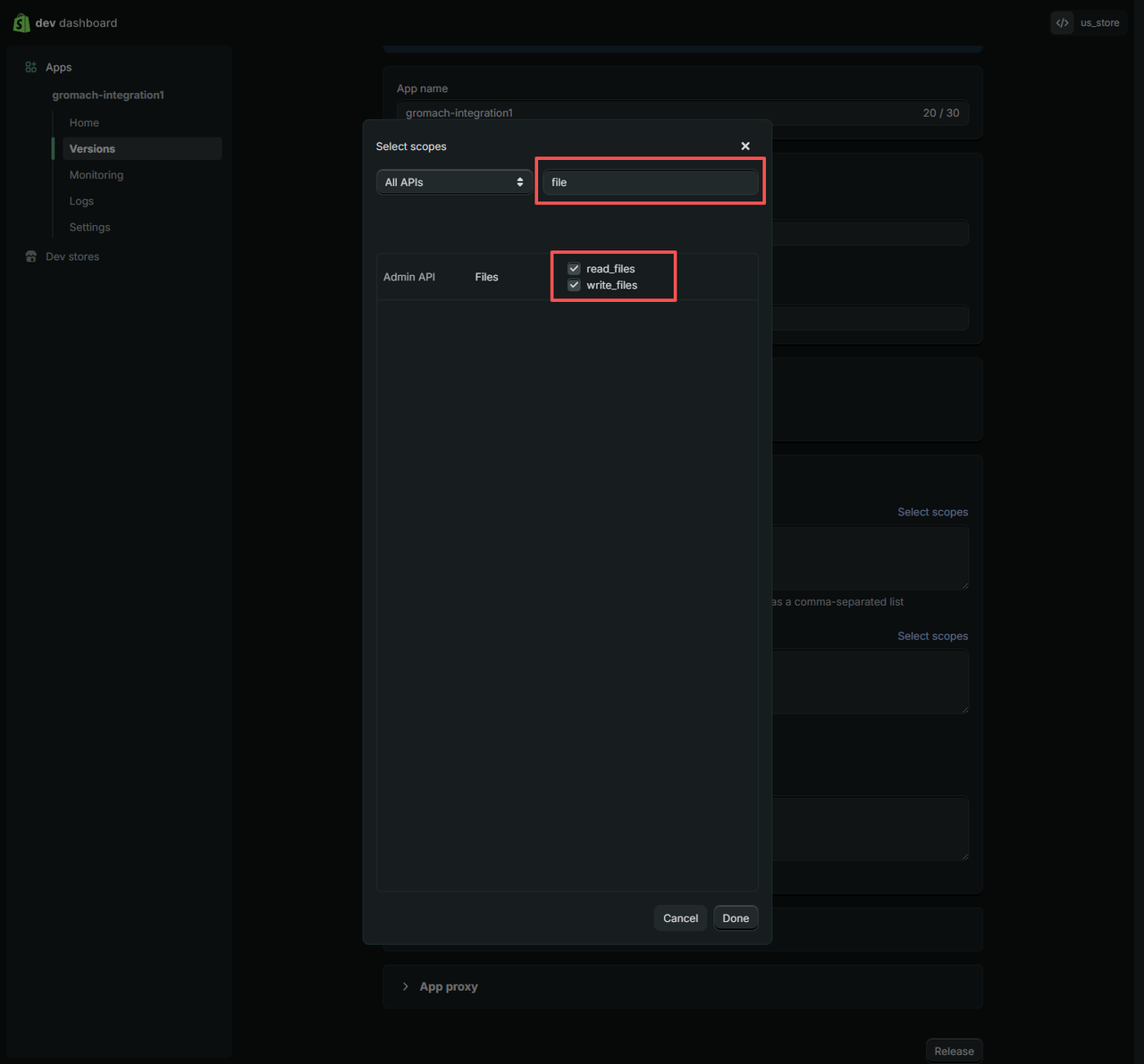
Step 3: Install the App and Get API Keys
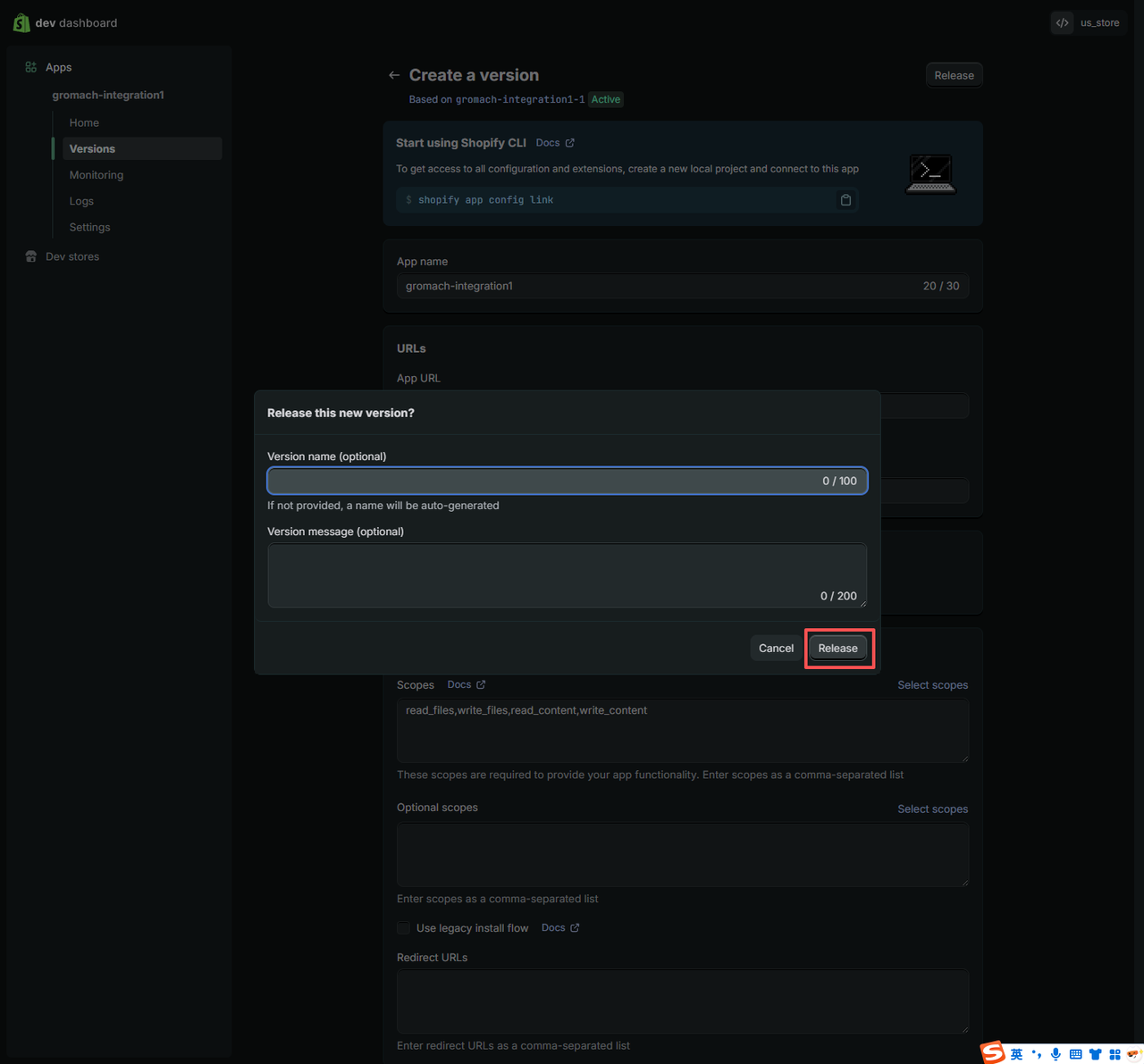
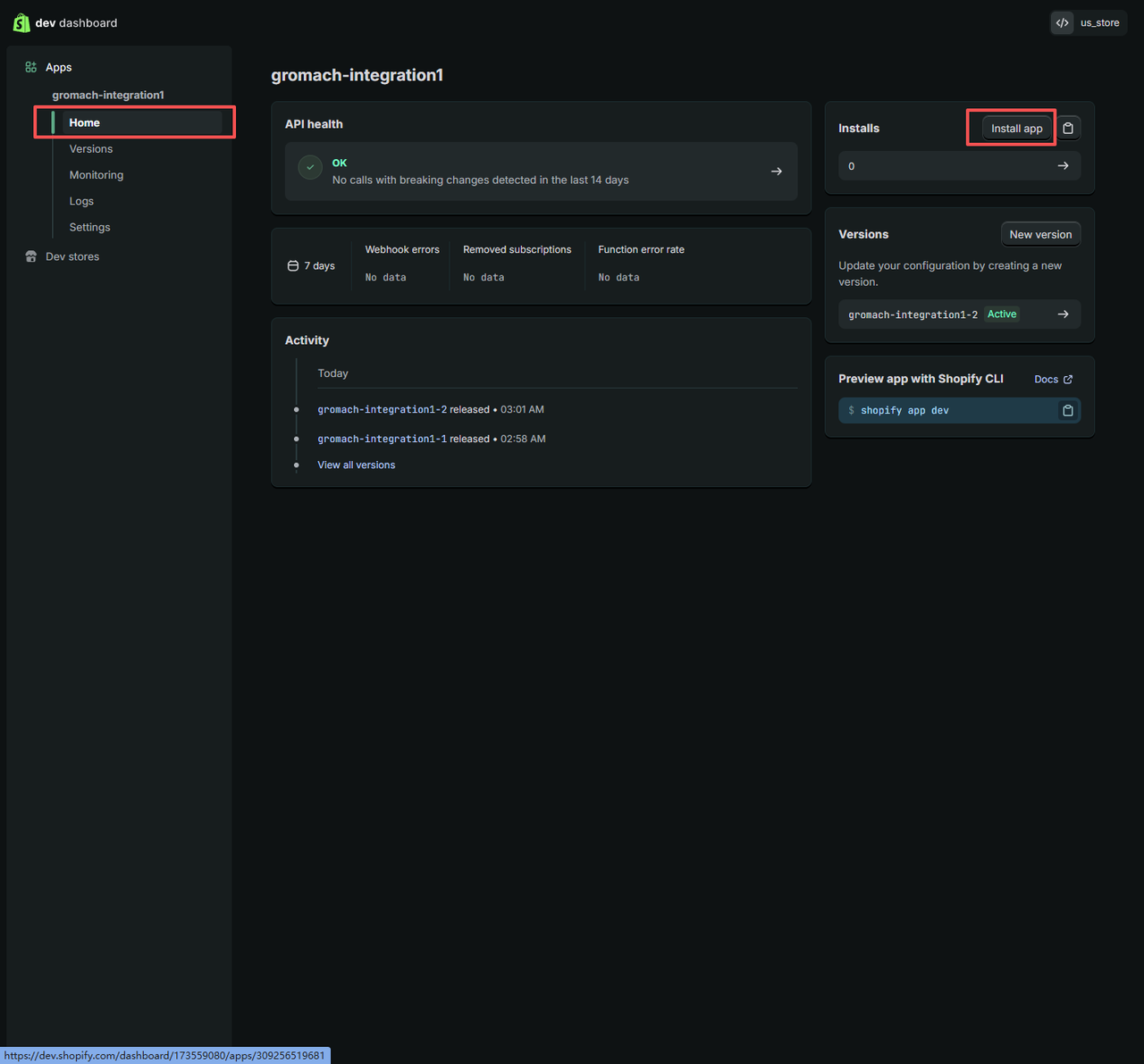
After configuring permissions, click "Install app" to install the app to your store.
Step 4: Enter Credentials in GroMach
Go back to GroMach's "Option 2: Connect Manually" interface and fill in the following information:
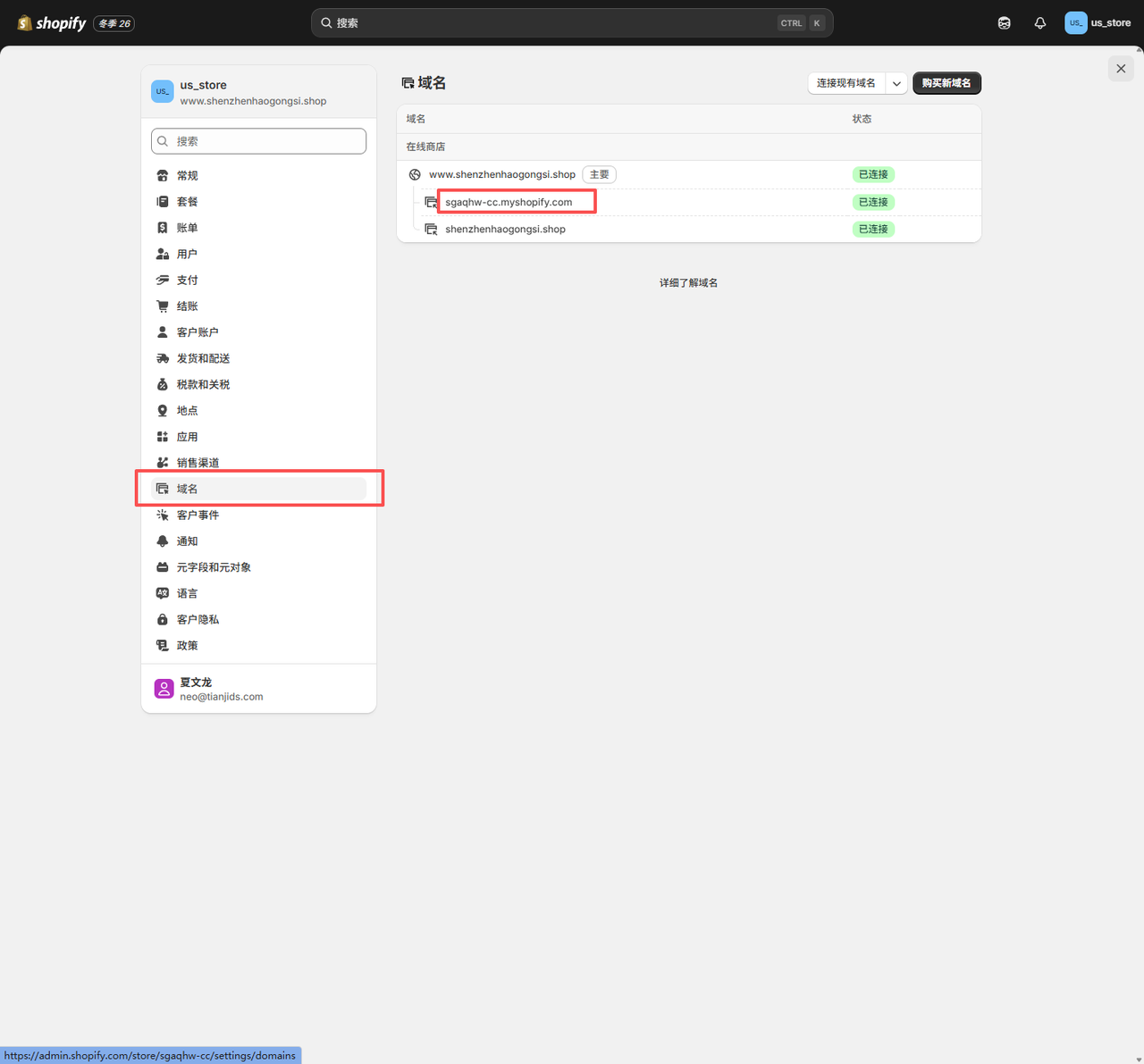
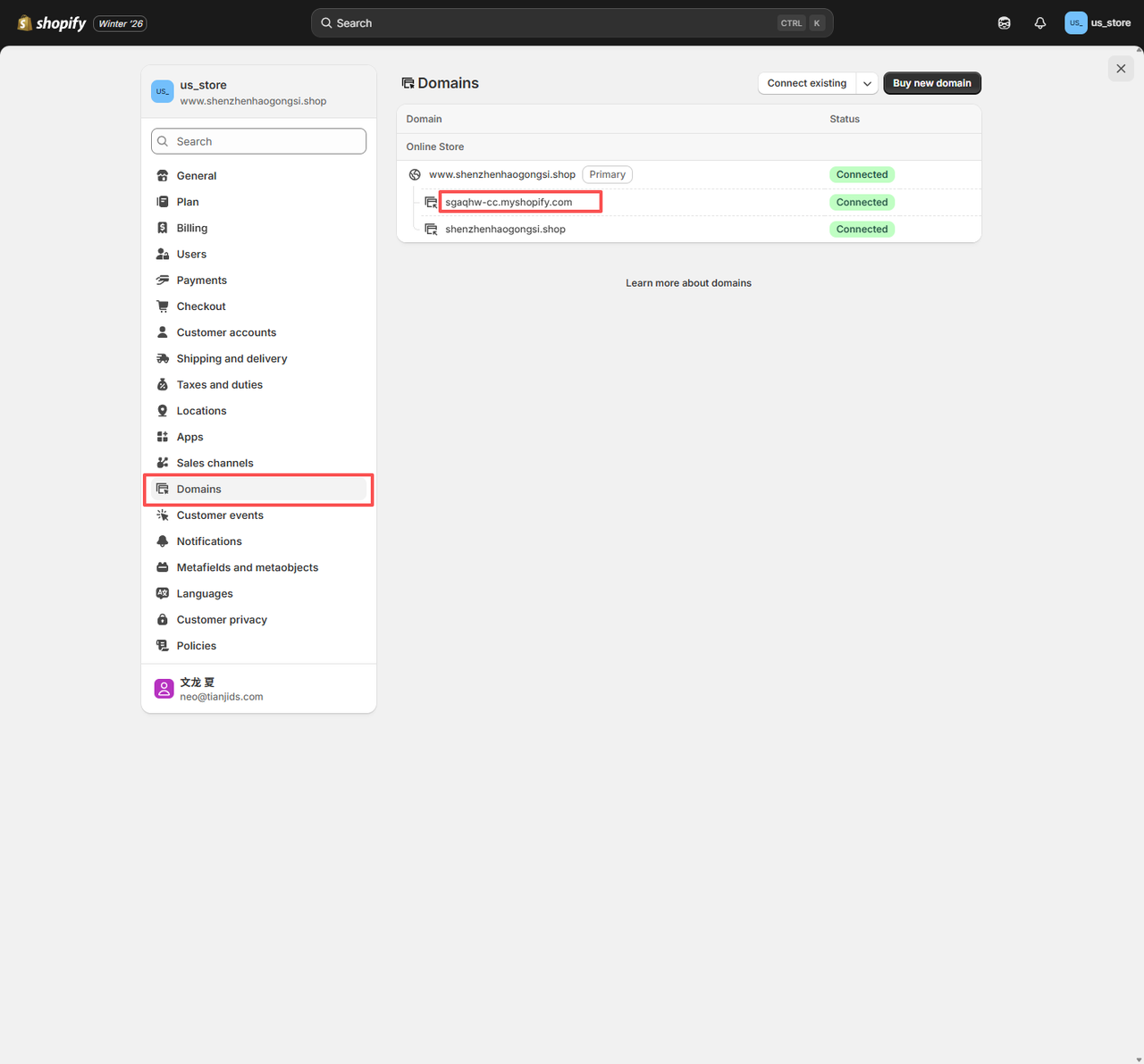
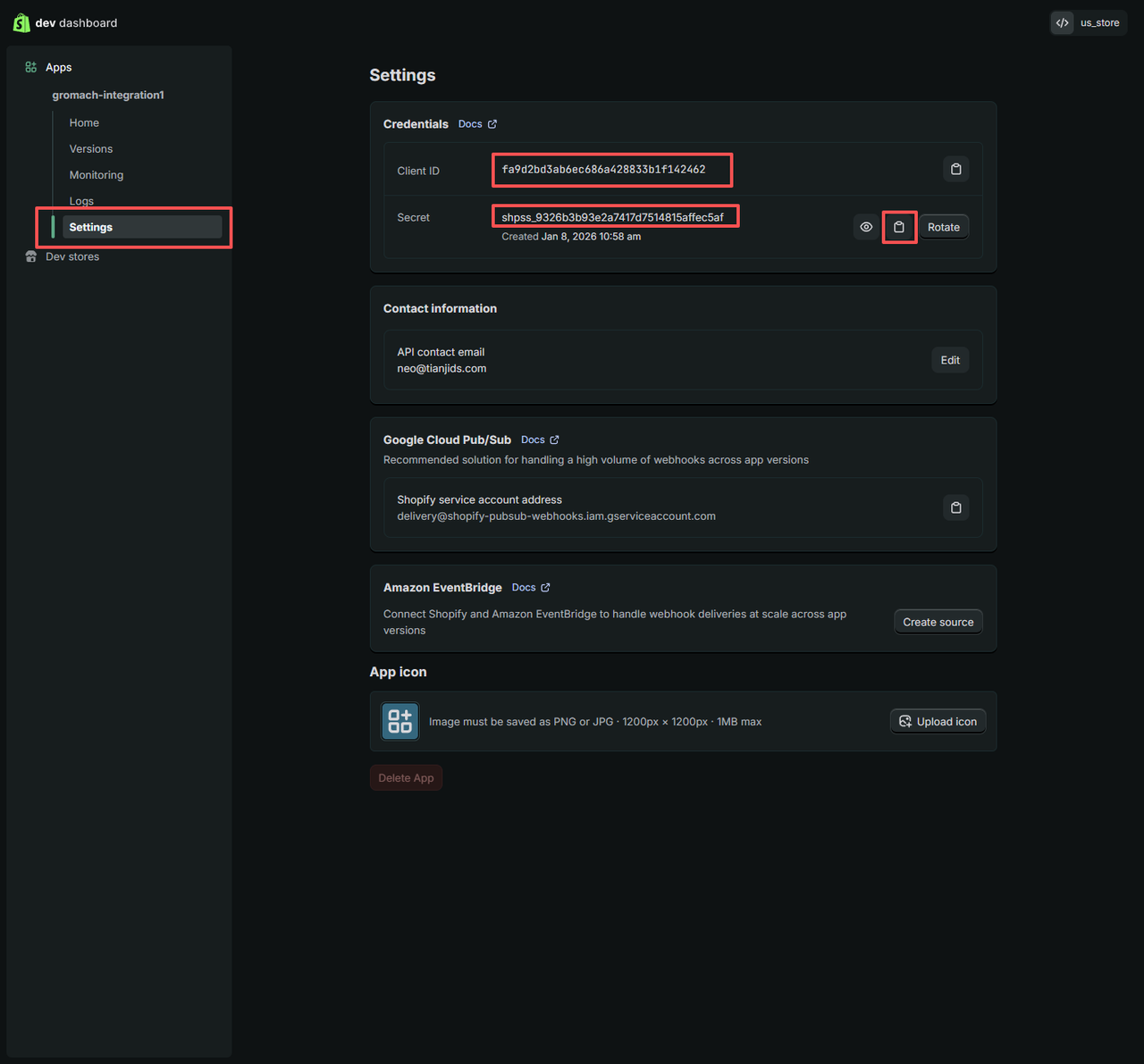
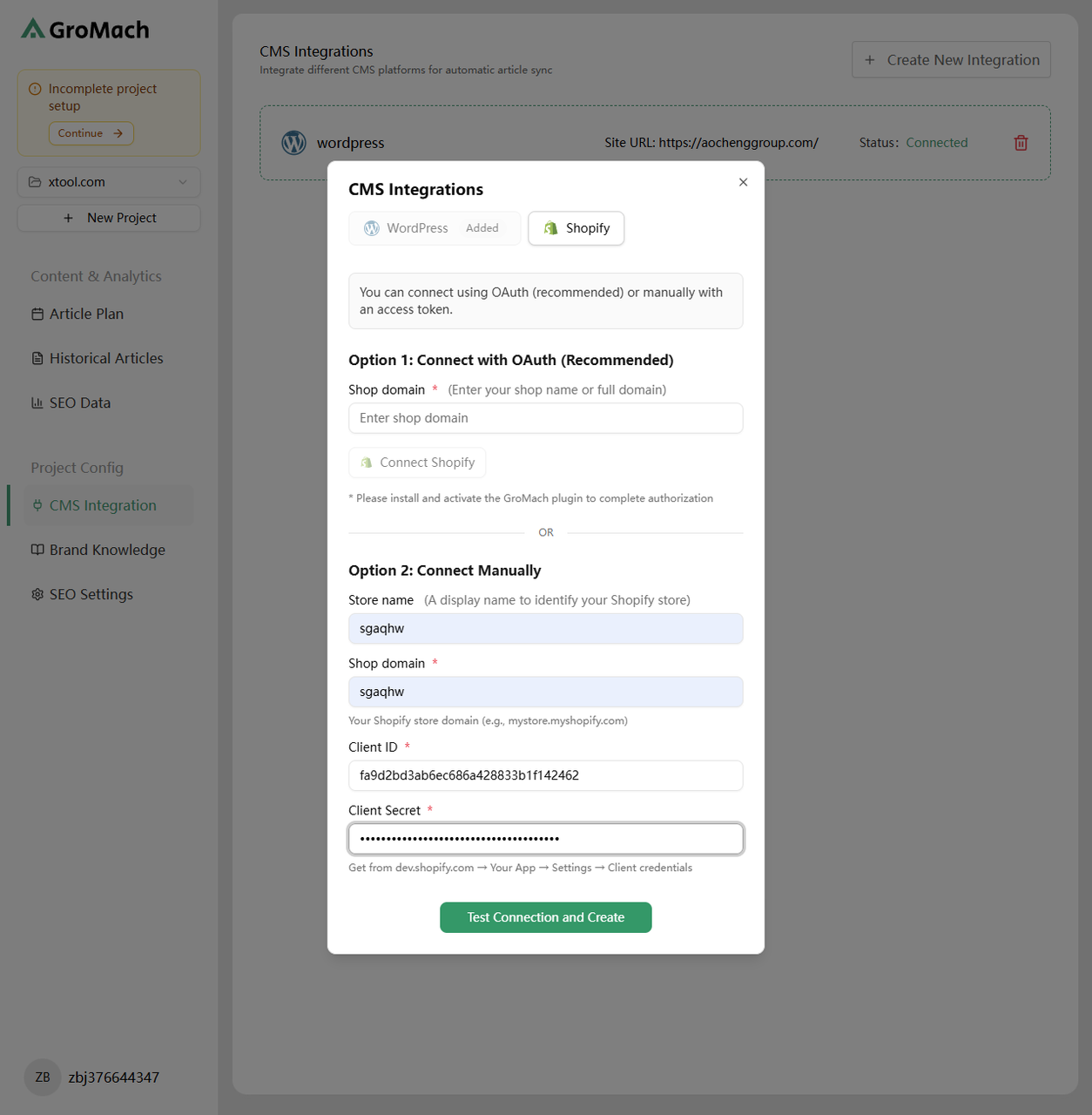
Illustration: Filling in Shopify credentials in GroMach dashboard
- Store Name: Custom name (e.g., My Shop)
- Shop Domain: Your store domain (e.g., abc.myshopify.com)
- Admin API Access Token: The Access Token from the installed app